# How to display external images in form and list?
When you attach the image to the record or paste it into rich-content - users will see the images fine.
But what to do if you need to associate external images with your record - for example when you have an externally stored images library of your company products?
Here are several methods to display such images in your apps:
## Method 1: Displaying image in rich-text field[](#method-1-displaying-image-in-rich-text-field "Direct link to Method 1: Displaying image in rich-text field")
1. **Create a rich text field**: in `fields/index.ts` or use existing one - for example `description`
fields/index.ts
```
{
caption: 'Image content',
name: 'c_image_content',
textType: 'richtext',
type: 'text',
},
```
2. **Add to layout**: place the field on the layout
views/layouts/default.tsx
```
```
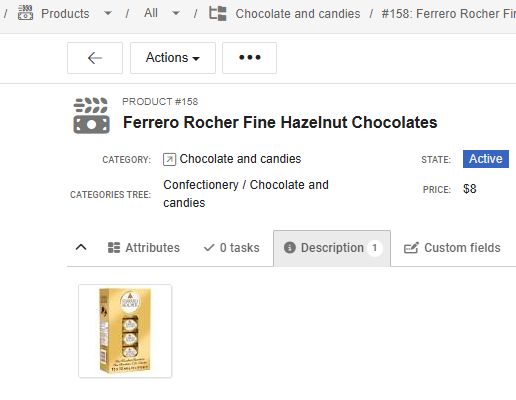
3. **Edit the record**: go to this record and use "insert image" feature - then select "URL" and paste your external image URL.
4. **Result on the form**: the image can be seen in this field as shown below:
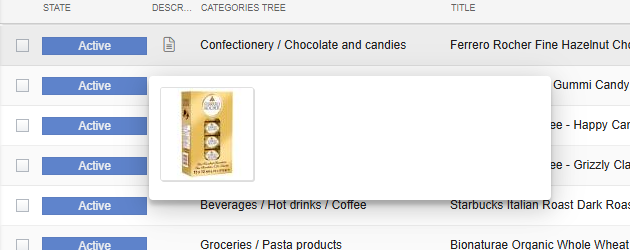
5. **Result on the list**: put this field to list - when you hover the content icon - the image can be seen in the pop-over:
## Method 2: Using image-only input box + auto-generated rich-content field[](#method-2-using-image-only-input-box--auto-generated-rich-content-field "Direct link to Method 2: Using image-only input box + auto-generated rich-content field")
1. **Configure the image-url field**: add 2 new fields in `fields/index.ts`:
fields/index.ts
```
{
caption: 'External image URL',
name: 'c_ext_image_url',
type: 'text',
},
{
calcType: 'calcfield',
caption: 'Image content',
dependsOn: ['c_ext_image_url'],
name: 'c_image_content',
textType: 'richtext',
type: 'text',
},
```
2. **Add the fields to layout**: place the fields on the layout in `views/layouts/default.tsx`:
views/layouts/default.tsx
```
```
3. **Define the calc-field function**: in `fields/calc-fields/index.ts`:
fields/calc-fields/index.ts
```
export function c_image_content() {
if (!entity.c_ext_image_url) return '';
return ` `;
}
```
Handling HTTP Images
If your users have images on HTTP (not HTTPS), we recommend using a self-hosted or public proxy service. For example, you can use wsrv.nl:
fields/calc-fields/index.ts
```
export function c_image_content() {
if (!entity.c_ext_image_url) return '';
return `
`;
}
```
Handling HTTP Images
If your users have images on HTTP (not HTTPS), we recommend using a self-hosted or public proxy service. For example, you can use wsrv.nl:
fields/calc-fields/index.ts
```
export function c_image_content() {
if (!entity.c_ext_image_url) return '';
return `}) `;
}
```
It caches your images, resizes them (if you want), and serves them over HTTPS.
**How to use it in your code**: You simply prepend their URL to your insecure link.
**Pros**: Instant fix, no server to manage, free.
**Cons**: You rely on a third party (if they go down, your images break), and they have rate limits (fair usage).
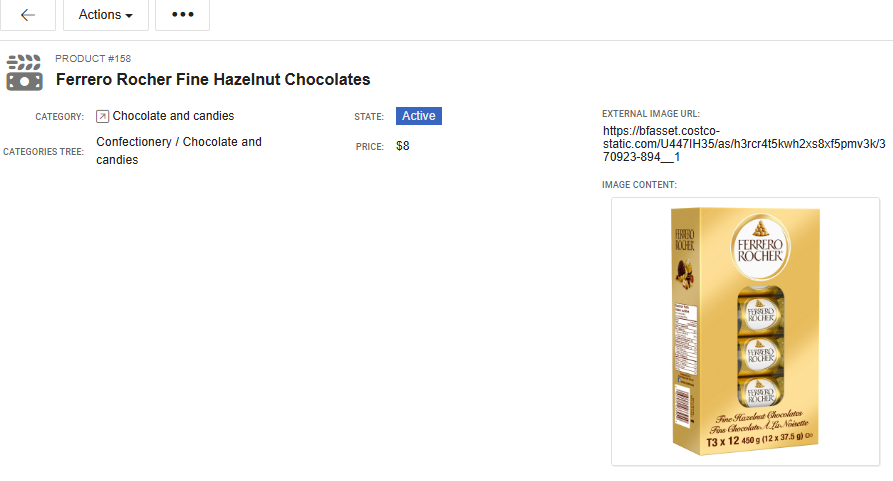
4. **Edit the record**: go to this record and edit c\_ext\_image\_url field - paste external image URL there.
5. **Result on the form**: the image URL is visible as well as its rendered version:
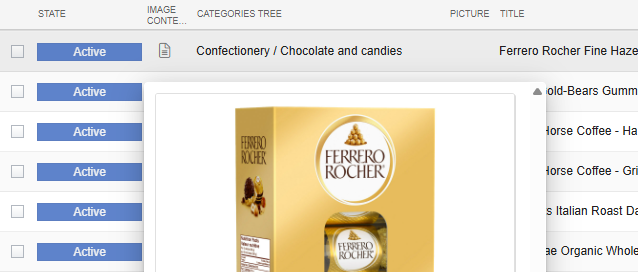
6. **Result on the list**: put c\_image\_content to list - when you hover the content icon - the image can be seen in the pop-over
## Method 3: Using format-function for the field[](#method-3-using-format-function-for-the-field "Direct link to Method 3: Using format-function for the field")
1. **Configure the image-url field**: add a new field in `fields/index.ts`:
fields/index.ts
```
{
caption: 'External image URL',
name: 'c_ext_image_url',
options: {
gridview_column_max_width: 110,
gridview_column_min_width: 110,
plain_renderer: 'format-from-another-field',
},
type: 'text',
},
```
2. **Add the field to layout**: place the field on the layout in `views/layouts/default.tsx`:
views/layouts/default.tsx
```
```
3. **Define the field format-function**: in `views/ui-list-code/index.ts`:
views/ui-list-code/index.ts
```
import type { entity as entityType } from '#typings';
export const c_ext_image_url_format_function = (entity: typeof entityType) => {
if (!entity.c_ext_image_url) return null;
const result = {
text: '',
text_style: [
`display: inline-block !important`,
`width: 100px`,
`height: 38px`,
`background-image: url('${entity.c_ext_image_url}')`,
`background-size: contain`,
`background-repeat: no-repeat`,
`background-position: center;`,
].join(';'),
tooltip: entity.c_ext_image_url,
};
return result;
};
ComindView.addHelperFunction(c_ext_image_url_format_function);
```
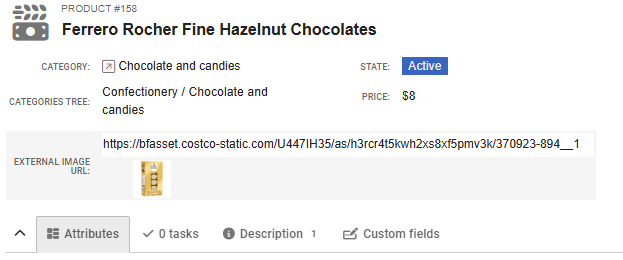
4. **Edit the record**: go to this record and edit c\_ext\_image\_url field - paste external image URL there
5. **Result on the form**: under your pasted external image URL - you can see the image itself:
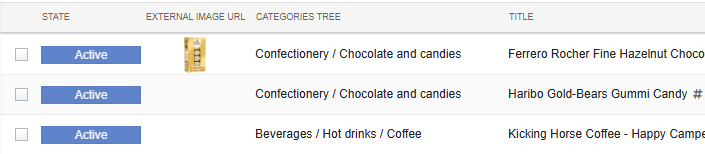
6. **Result on the list**: put c\_ext\_image\_url to list - it is immediately visible
## Related[](#related "Direct link to Related")
* [Form layouts](/developer-guide/building-blocks/form-layouts.md) - layout elements, sections, and custom layouts reference
* [Fields and field options](/developer-guide/building-blocks/fields-and-field-options.md) - field options including `gridview_renderer`, `plain_renderer`, and calc field configuration
* [Lists](/developer-guide/building-blocks/lists.md) - cell renderers and visual customization for grid views
`;
}
```
It caches your images, resizes them (if you want), and serves them over HTTPS.
**How to use it in your code**: You simply prepend their URL to your insecure link.
**Pros**: Instant fix, no server to manage, free.
**Cons**: You rely on a third party (if they go down, your images break), and they have rate limits (fair usage).
4. **Edit the record**: go to this record and edit c\_ext\_image\_url field - paste external image URL there.
5. **Result on the form**: the image URL is visible as well as its rendered version:

6. **Result on the list**: put c\_image\_content to list - when you hover the content icon - the image can be seen in the pop-over

## Method 3: Using format-function for the field[](#method-3-using-format-function-for-the-field "Direct link to Method 3: Using format-function for the field")
1. **Configure the image-url field**: add a new field in `fields/index.ts`:
fields/index.ts
```
{
caption: 'External image URL',
name: 'c_ext_image_url',
options: {
gridview_column_max_width: 110,
gridview_column_min_width: 110,
plain_renderer: 'format-from-another-field',
},
type: 'text',
},
```
2. **Add the field to layout**: place the field on the layout in `views/layouts/default.tsx`:
views/layouts/default.tsx
```
```
3. **Define the field format-function**: in `views/ui-list-code/index.ts`:
views/ui-list-code/index.ts
```
import type { entity as entityType } from '#typings';
export const c_ext_image_url_format_function = (entity: typeof entityType) => {
if (!entity.c_ext_image_url) return null;
const result = {
text: '',
text_style: [
`display: inline-block !important`,
`width: 100px`,
`height: 38px`,
`background-image: url('${entity.c_ext_image_url}')`,
`background-size: contain`,
`background-repeat: no-repeat`,
`background-position: center;`,
].join(';'),
tooltip: entity.c_ext_image_url,
};
return result;
};
ComindView.addHelperFunction(c_ext_image_url_format_function);
```
4. **Edit the record**: go to this record and edit c\_ext\_image\_url field - paste external image URL there
5. **Result on the form**: under your pasted external image URL - you can see the image itself:

6. **Result on the list**: put c\_ext\_image\_url to list - it is immediately visible

## Related[](#related "Direct link to Related")
* [Form layouts](/developer-guide/building-blocks/form-layouts.md) - layout elements, sections, and custom layouts reference
* [Fields and field options](/developer-guide/building-blocks/fields-and-field-options.md) - field options including `gridview_renderer`, `plain_renderer`, and calc field configuration
* [Lists](/developer-guide/building-blocks/lists.md) - cell renderers and visual customization for grid views